Anytime Screenshot
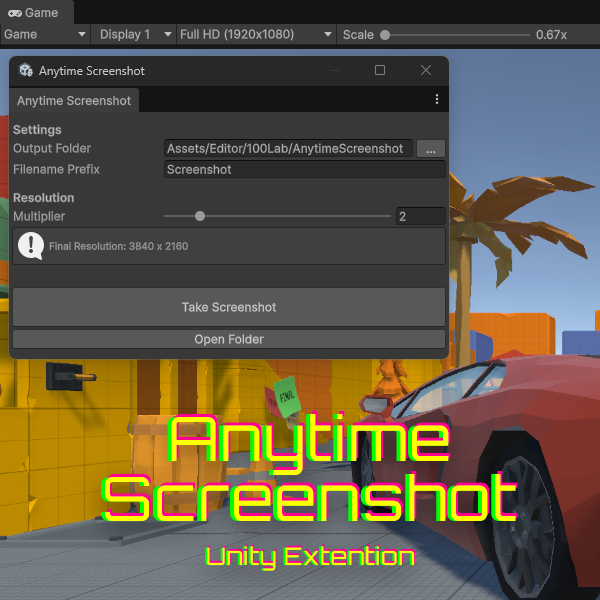
Capture the GameView anytime, in high resolution.
Works during PlayMode, PauseMode, and even EditMode.
* Download available immediately after purchase
The frustration of capturing screenshots
When developing in Unity, have you ever thought, "I want to capture this exact moment," only to find that the default tools are too limiting? Maybe you can only capture during play, or the resolution is too low. Preparing high-resolution screenshots for store pages or social media can be surprisingly frustrating.
Anytime Screenshot solves that problem. Capture the GameView in high resolution not only during PlayMode, but also in EditMode and PauseMode. At any stage of development, you can quickly preserve beautiful screenshots exactly the way you want them.
Key Features
Capture Anytime, Instantly
Capture not only during Preview execution (PlayMode), but also while paused (PauseMode) or even when the game is not running at all (EditMode). Stop on a specific frame, adjust the angle until it looks right, and capture exactly what you need. It is a major boost to development efficiency.
Up to 8x Higher Resolution
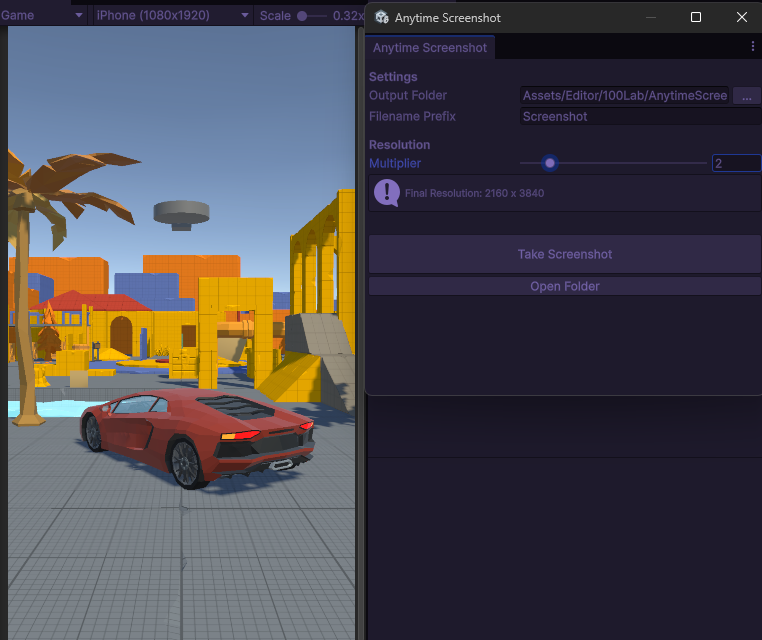
With the Multiplier setting, you can export at anywhere from 1x to 8x the current GameView size. Even if your display is not 4K, the tool internally renders at a higher resolution, letting you produce ultra-high-resolution images suitable for websites, store pages, or posters.
UI and Post-Processing Included
Because it captures the actual GameView output directly, everything on the screen is preserved, including Canvas UI and post-processing effects. The result is a screenshot that matches your in-development view exactly, which makes it ideal for manuals, documentation, and devlog or social media updates.

Basic Usage
- Open the window: Select
100Lab > Anytime Screenshotfrom the menu. - Set the output folder: Choose where the screenshots should be saved in Output Folder.
- Select the resolution: Choose 1x to 8x in Multiplier. Higher values mean higher resolution.
- Capture: Click the Capture button. The image is automatically saved as a PNG.
Recommended Use Cases
- Store assets: Use high-resolution 4K+ screenshots to enhance your store page.
- Bug reports: Capture scene states exactly as they appear in EditMode.
- Progress sharing: Share your development screens on social media or Discord.
- Documentation: Create screenshots for manuals and tutorials.
FAQ
Q: The image failed to generate when I used 8x capture.
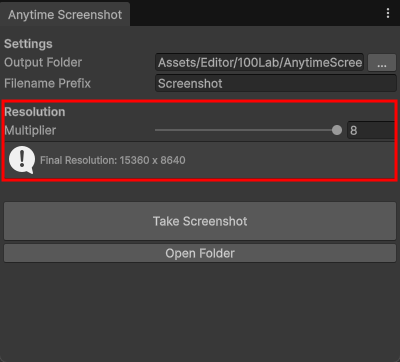
A: High-resolution capture consumes GPU memory. If your GameView is already large and you select 8x, the capture may fail due to insufficient memory. Try reducing the GameView size or lowering the multiplier.
Q: What image format is saved?
A: Images are saved as PNG files. Transparent backgrounds are not supported, and the result matches what is shown in the GameView.
Q: Does it work with URP and HDRP?
A: Yes. Since it captures the GameView rendering result itself, it works regardless of whether your project uses the Built-in Render Pipeline, URP, or HDRP.
Requirements / License
- ✅ Recommended for Unity 2022.3 LTS or later
- ✅ Commercial use allowed
-
Team License: $5
(for shared use in team development) - 📄 Read the full license terms