Asset Size Visualizer
Visualize asset dependencies by area.
A SizeMap for Unity that reveals the source of bloat instantly.
* Download available immediately after purchase
Why build-size bloat is hard to track down
As Unity projects grow, build size tends to grow with them. It becomes increasingly hard to answer simple questions like, "Which asset is heavy?" or "Why is this taking so much space?" Standard Unity tooling alone rarely gives you a clear answer.
Asset Size Visualizer is inspired by Unreal Engine's SizeMap. By visualizing asset dependencies as rectangles sized by their footprint, it lets you identify the files consuming the most space at a glance. That makes optimization faster, more targeted, and far less guesswork-driven.
Key Features
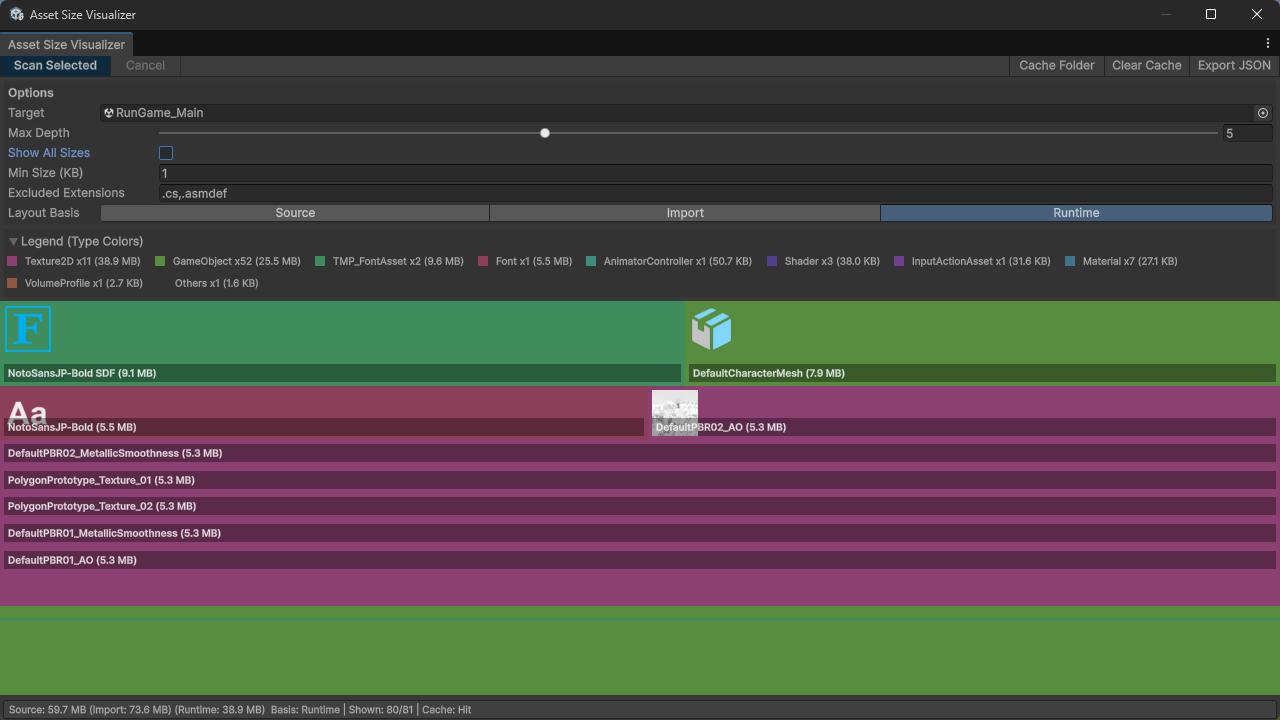
Intuitive Visualization by Size Ratio
The tool extracts every file that a selected asset depends on, such as a Scene or Prefab, and draws them with area proportional to their size. Huge textures, models, and audio files immediately stand out, making it easy to decide where optimization will have the most impact.
Three Different Ways to Measure
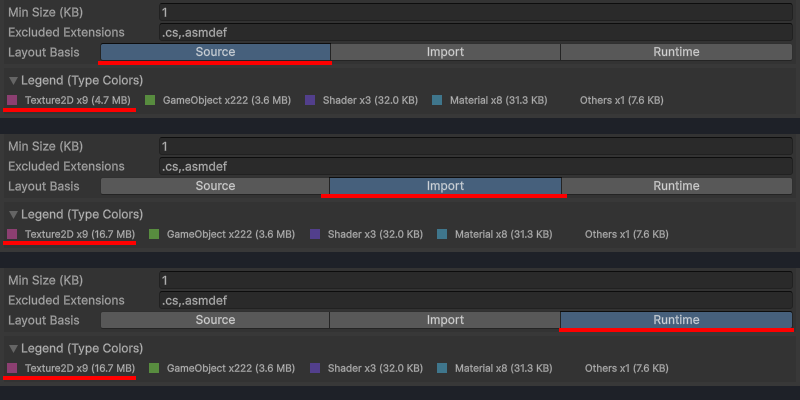
You can switch between Source, Import, and Runtime in real time. Source shows original file size, Import focuses on optimized imported size, and Runtime estimates in-memory usage. That makes the tool useful for everything from keeping your repository lean to reducing build size and runtime memory pressure.
Smooth Workflow Integration
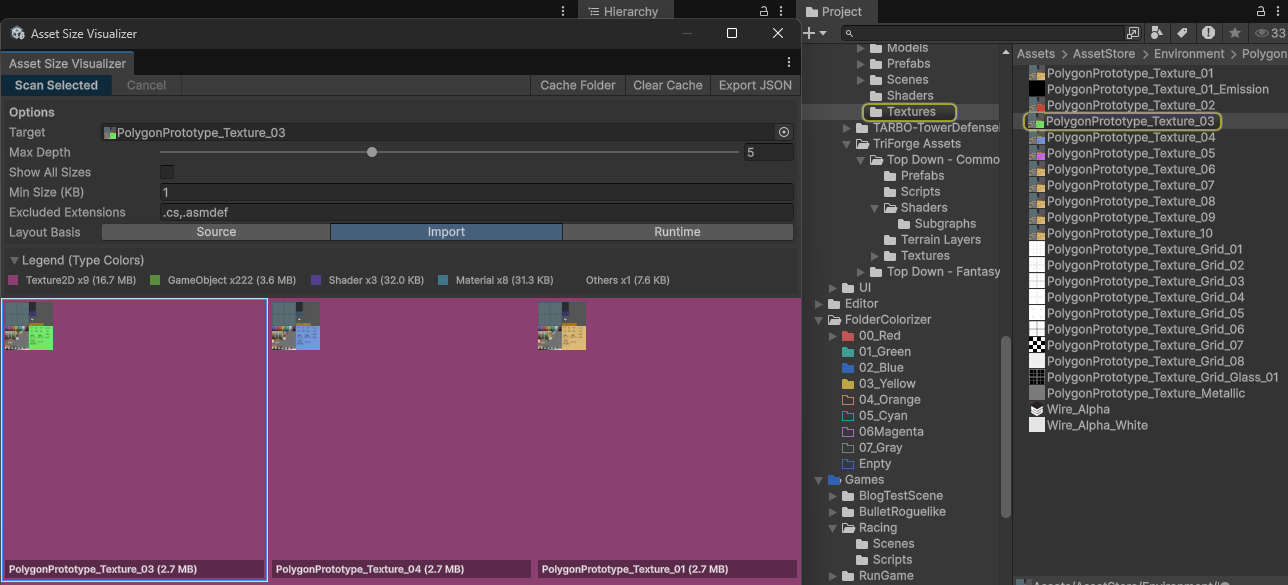
Click any rectangle in the visualization and the corresponding asset is immediately selected in the Project browser. Once you find a bloated file, you can jump straight into changing its import settings or replacing it without breaking your workflow.
Basic Usage
- Select an asset: In the Project view, choose the Scene, Prefab, or other asset you want to analyze.
- Open the window: Select
Tools > 100Lab > Asset Size Visualizerfrom the menu. - Choose a size type: Select Source, Import, or Runtime as the measurement mode.
- Analyze: Click Analyze to generate the visualization. Click any rectangle to jump to that asset.
How to Use Each Size Type
- Source: Original file size. Useful when reducing Git repository growth.
- Import: Imported size. Best suited for build-size optimization.
- Runtime: Estimated runtime memory usage. Useful as a reference for memory optimization.
FAQ
Q: How accurate is the Runtime size?
A: Runtime size is an estimate based on texture formats, compression settings, and platform settings. It may differ from actual runtime memory usage, but it is very useful for relative comparisons.
Q: Does it work well on large projects?
A: Yes. However, if the selected asset has a very large dependency graph, analysis can take longer. In that case, it helps to narrow the scope with dependency-depth limits or minimum-size filtering.
Q: Which file formats are supported?
A: It supports all asset types that Unity can import. That includes textures, meshes, audio, scripts, shaders, and most other common asset formats.
Requirements / License
- ✅ Recommended for Unity 2022.3 LTS or later
- ✅ Commercial use allowed
-
Team License: $5
(team license version on Gumroad) - 📄 Read the full license terms