Folder Colorizer
Color-code folders in the Project view.
Visually highlight important folders and make organization easier.
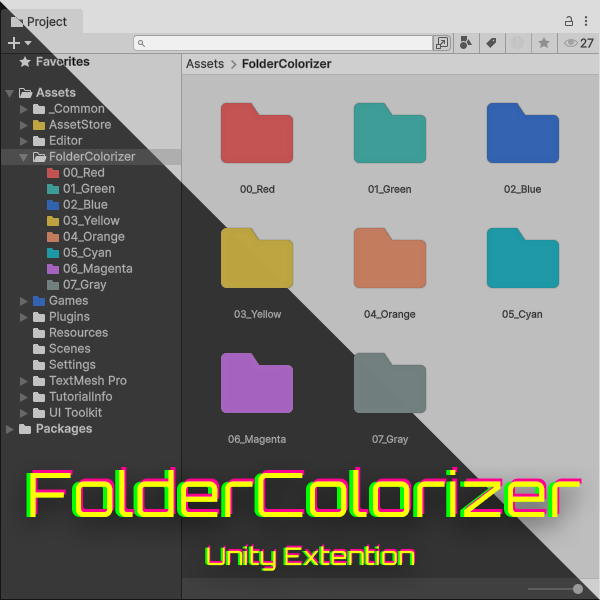
Improve visibility with folder colors
As Unity development grows, the Project view fills up with hundreds or even thousands of folders. The cognitive cost of reading each folder name, identifying it, and locating the one you need becomes significant. That small burden adds up over time and turns into unnecessary stress during long development sessions.
Folder Colorizer solves that stress through color, one of the fastest visual cues humans can recognize. Important folders become instantly distinguishable, which does more than make the Project view look nicer. It directly reduces friction and speeds up day-to-day development.
Key Features
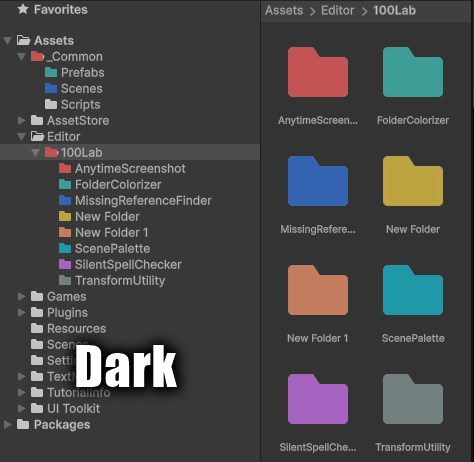
High-Visibility Color Palette
A pastel-oriented palette was selected so colors remain readable and attractive in dark mode. Harsh primary colors tend to strain the eyes and clash with the editor UI during long sessions, so this tool uses tones that stand out clearly while still fitting naturally into the Unity editor.
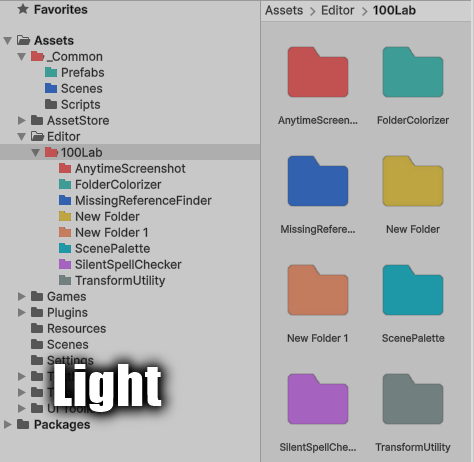
Full Light Mode Support
It also works cleanly in Unity's light mode. Folder icons do not become washed out or muddy against a bright background. The tones are tuned to remain readable regardless of whether your development setup uses dark mode or light mode.
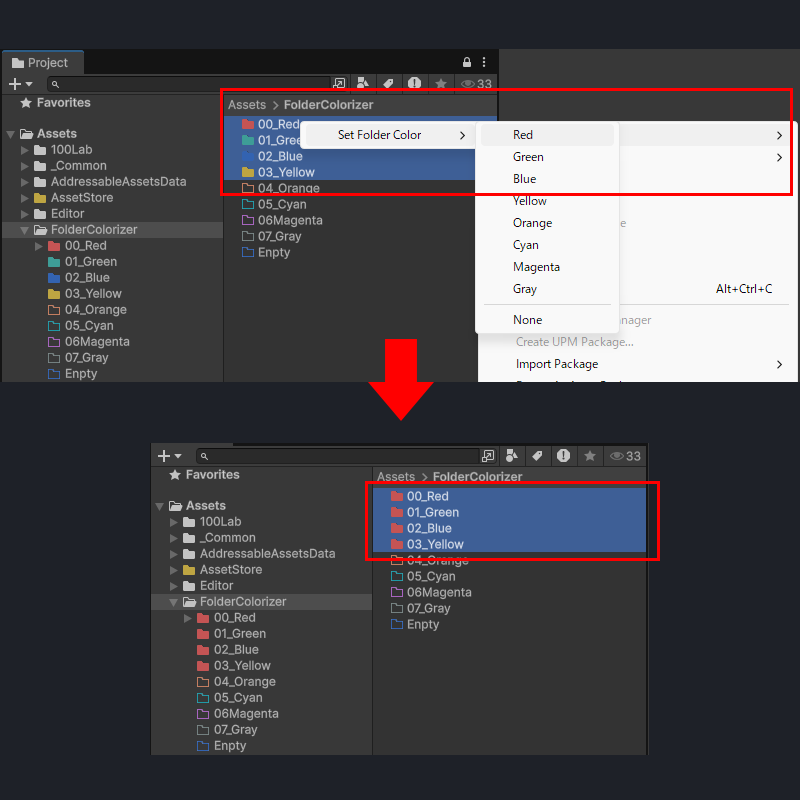
Apply Colors to Multiple Folders at Once
You do not need to configure folders one by one. Just select multiple folders in the Project view, open the context menu, and apply a color in one step. It is especially useful during large refactors or initial project setup, where broad organization work needs to happen fast.
Share Color Rules Through Version Control
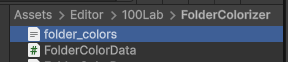
Color settings are stored in a dedicated JSON file named folder_colors.json. By including it in version control, the whole team can share the same visual folder structure. New members can understand the project's organization more quickly, even before reading documentation in detail.
Basic Usage
- Select the target: In the Project view, right-click the folder you want to color.
- Open the menu: Choose
100Lab > Set Folder Colorfrom near the top of the context menu. - Choose a color: A preset palette appears. Click the color you want.
- Apply to multiple folders: If multiple folders are selected, the same action applies the same color to all of them.
- Reset: Select
Noneto restore the original icon.
Recommended Color Rules
Here is a visibility-focused color scheme suggested by 100Lab:
- ●Scripts: Red. Make scripts stand out as a warning color.
- ●Scenes: Green. Give the project's starting points a reassuring tone.
- ●Prefabs: Blue. Use calm blue tones for reusable building blocks.
- ●Art/Textures: Yellow. Use bright tones for visual assets.
FAQ
Q: Does it conflict with other editor extensions?
A: This asset uses Unity's standard EditorApplication.projectWindowItemOnGUI callback and overlays a tint on the folder icon. If another tool completely replaces folder icons with custom images, the drawing order may cause conflicts. In most cases, though, it works fine alongside other project organization tools.
Q: Will the color remain if I move the folder?
A: Yes. The color is linked to Unity's internal GUID rather than the folder name or path, so it remains intact even if the folder is moved or renamed.
Q: Where are the color settings stored?
A: They are stored as folder_colors.json inside the asset folder, usually under Assets/Editor/100Lab/FolderColorizer/. If you include that file in Git or another version control system, the entire team can share the same folder colors.
Requirements / License
- ✅ Recommended for Unity 2022.3 LTS or later
- ✅ Commercial use allowed
-
Team License: $5
(for shared use in team development) - 📄 Read the full license terms